
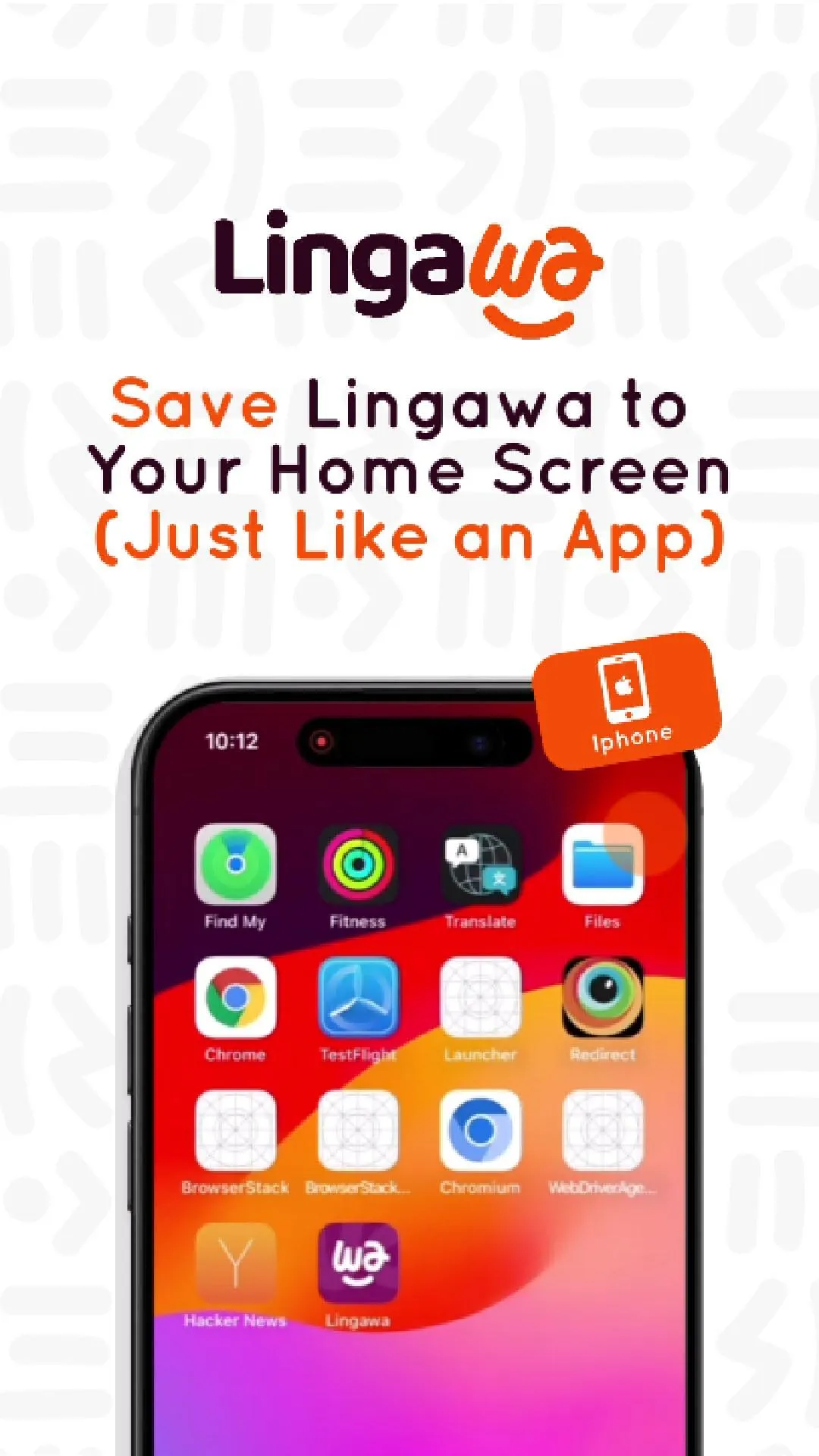
iPhone (Chrome – may require app download)
- Open Chrome on your iPhone
- Go to www.lingawa.com
- Log in to your student dashboard (optional: for quicker access to your lessons)
- You might see a prompt to Install Lingawa — tap it.
- If not, tap the Share icon (square with an arrow pointing up)
- Scroll down and select “Add to Home Screen”
- Rename if you like (or keep “Lingawa”)
- Tap Add
You’re all set! Lingawa now lives on your Home Screen — just one tap away from your learning.
Some iPhone users may be prompted to install Chrome from the App Store first.
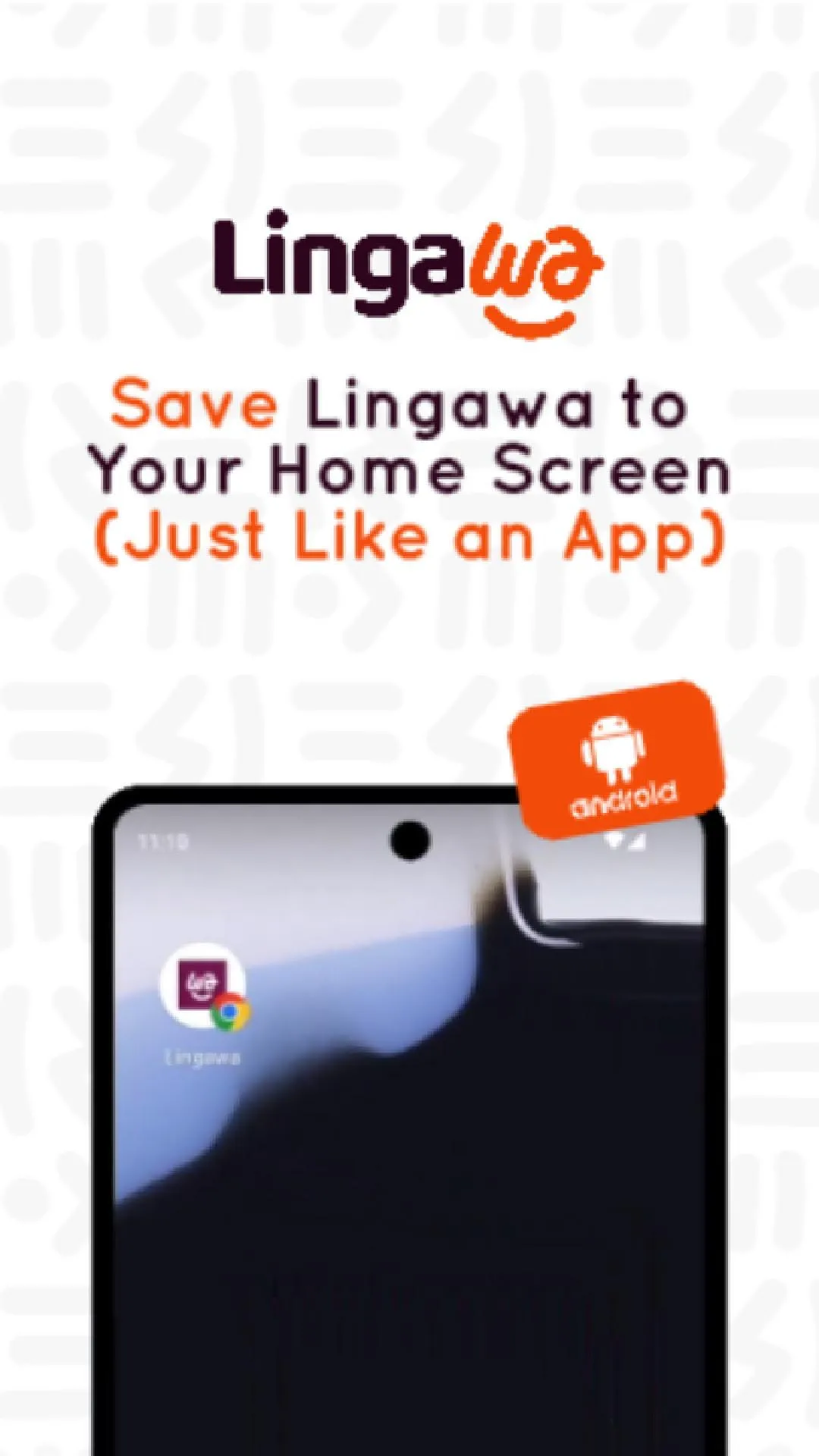
Android (Chrome)
- Open Chrome and go to www.lingawa.com
- Log in to your student dashboard, if you want to always go directly to your resources
- Tap the three dots in the top-right corner
- Tap “Add to Home screen” or “Install app”
- Tap Add (you can move it around or let it sit where your phone places it)
- That’s it! Lingawa is now just one tap away.
Bonus: Once added, it behaves like a native app — full-screen, no browser bar, just pure learning joy.
 For Desktop Users: Add Lingawa to Your Computer